Uploading your Docassemble code to FLO
Some assessments may require you to upload Docassemble code to FLO (Canvas) and may instruct you to create a Docassemble package to do so. This document explains one way to do this.
Docassemble packages are essentially a zip file containing all your code and other information to run your app. This document takes you the the process of creating that package Zip file, downloading it and testing it to make sure it works.
This document does not cover how to upload a zip to Canvas. You upload zip files like you would upload any file.
Create a Project
If you haven't already done so create a Playground Project for your assessment.
Click on your Playground menu and select Manage Projects
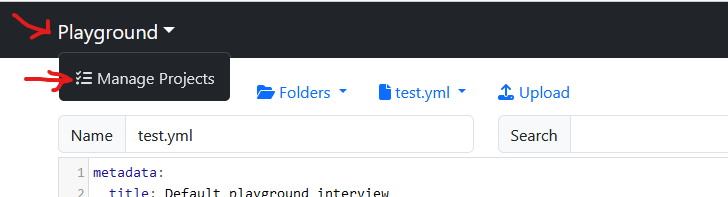
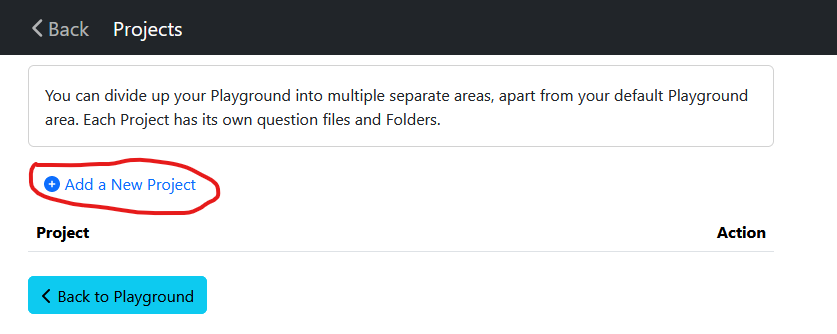
Create a Project for your assessment by:
- clicking on Add Project
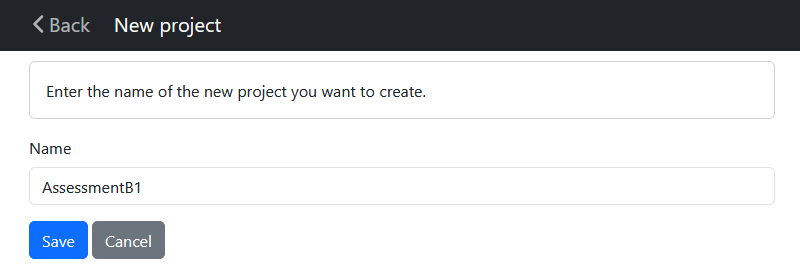
- Entering a name for your Project; and
- clicking Save.
A Project name must:
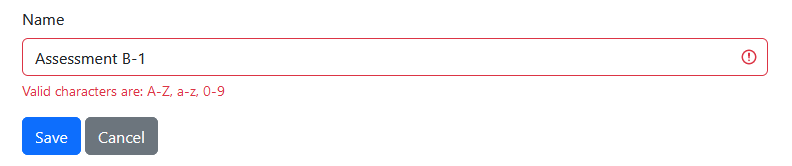
- start with a letter
- contain only letters and numbers
You will get an error if you try to enter a project name with spaces or dashes or underscores.
Add your assessment files
After you save your project you're taken to your Playground Project and you'll see it has no files.
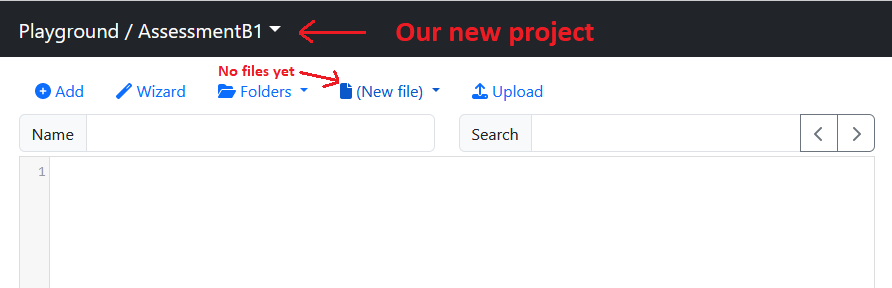
Now create your assessment files. If you already had your assessment files somewhere else you'll need to copy and paste your existing files into files in this project.
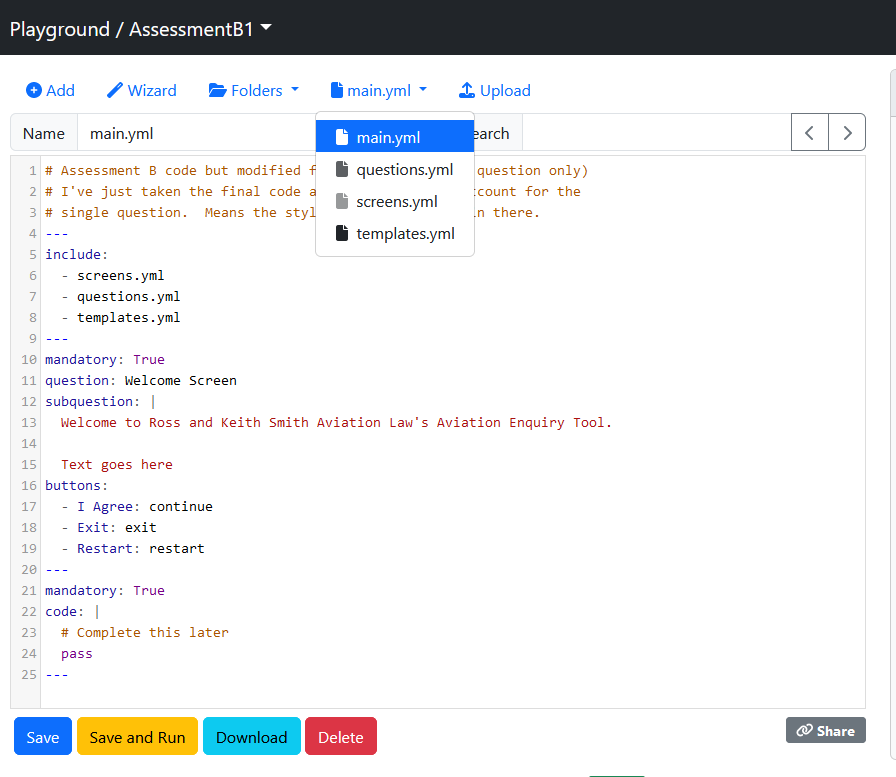
Create a Package for export
Go to Folders -> Packages
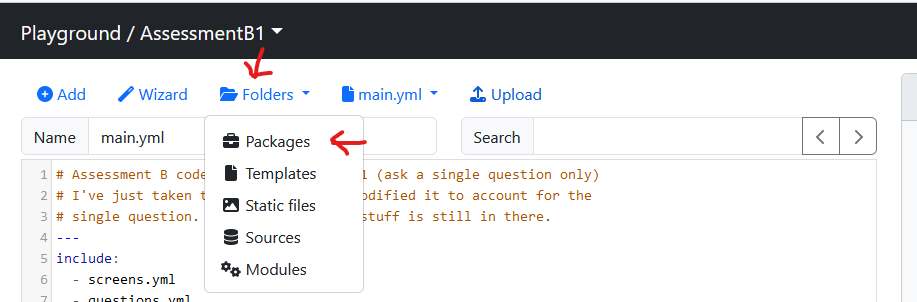
Set Package metadata
- Give your package a name
- Check the other information fields are correct.
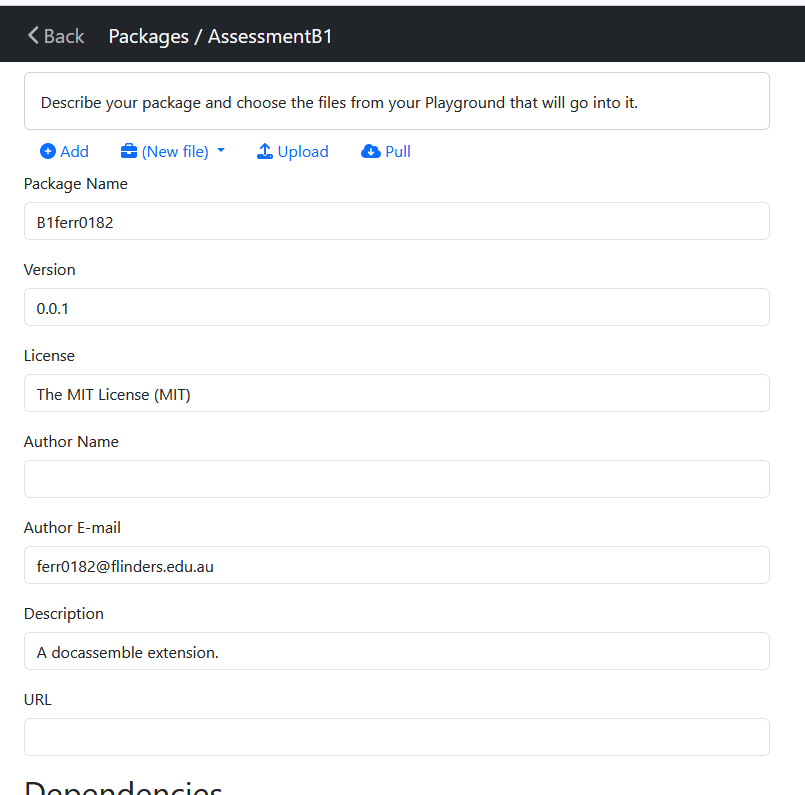
Your Assessment Instructions should tell you:
- how to name your package; and
- which other fields must be checked and set.
Add files to your package
You must complete this step otherwise your pacakage export will be empty!!
Just because you have code in your Playground it does not mean that code will automatically be added to your Packages. Packages and Playgrounds are two separate and unrelated things in Docassemble.
You must explicity add all your assessment files to your package
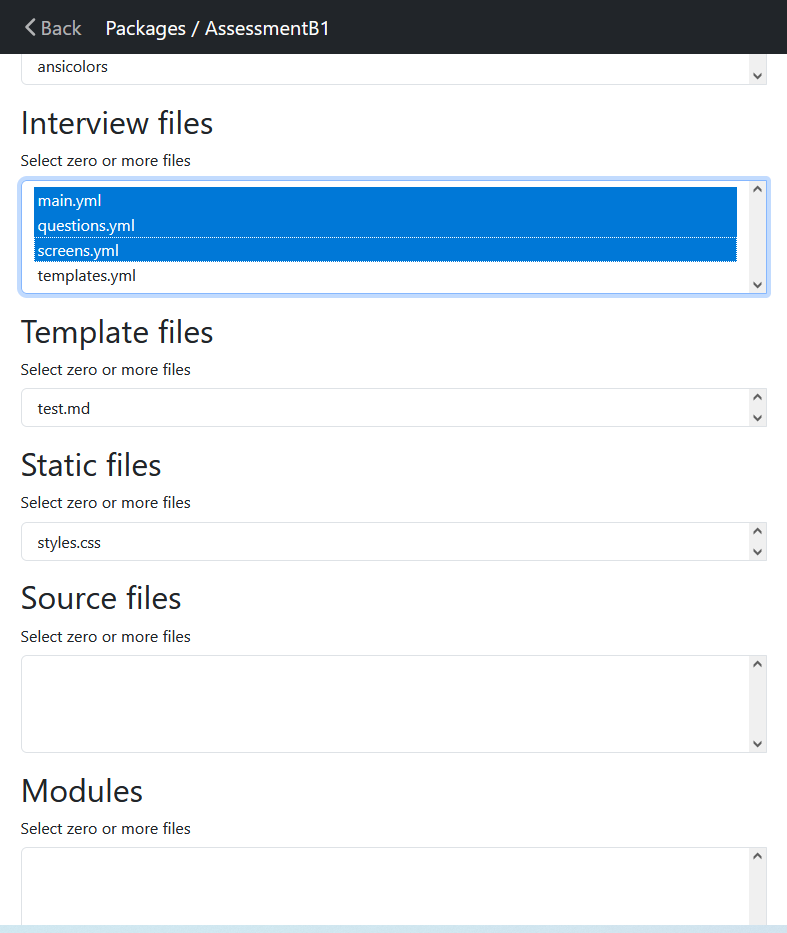
Scroll down until you see the different file selector dialogs.
Check each of the Interview files, Template files, Static files and Modules for files to add to your package.
You can click, control-click and shift-click to select the files you need. In the example
below only the Interview files main.yml, questions.yml and screens.yml are being
added to this package. Your file names and number of files may vary from assessment to assessment.
Interview files
This is where the .yml files you create in your Playground are listed.
Template files
This is where any attachment templates (eg files used for docx template file) are listed.
Static files
This is where any CSS files and image files are listed
Source files
This is not usually used in the topics taught using this textbook
Modules
This is not usually used in the topics taught in this textbook but it is where custom python modules are listed.
Save and download your package
Scroll down to the bottom of the screen. Press Save and then press Download. A zip file will be saved to your computer.
This zip file is the file you must upload to FLO.
Test your Package
You can test your exported Package before you submit it. Do the following:
- Create another empty Playground project
- Go to Folders -> Packages in your new Project
- Select Upload
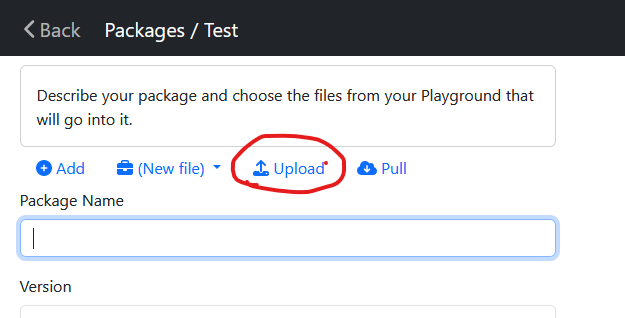
- Upload your zip file
- In the package window you should see your package information
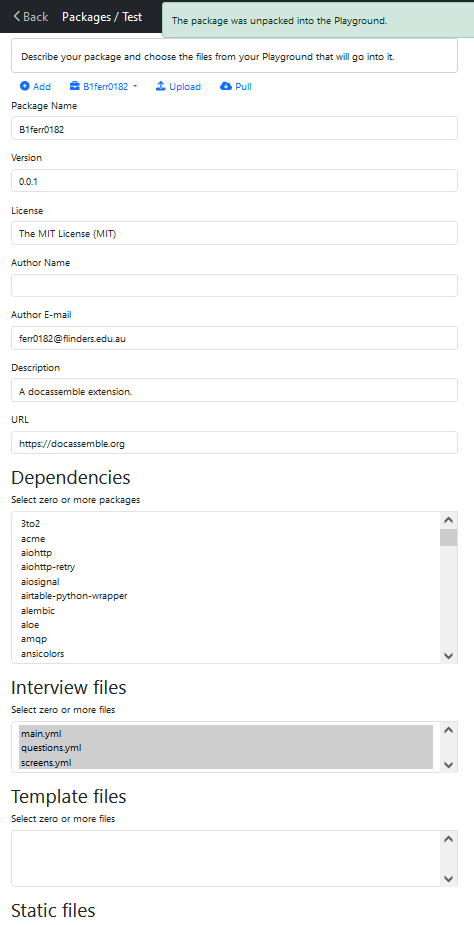
- Click on the
<Backbutton at the top left of the Navbar to go back to your Playground - Check all your files
- Run your app and make sure it works.
If your upload hasn't worked then it means that your Package was not created properly. Run through the Package creation process described above again and follow the steps carefully.